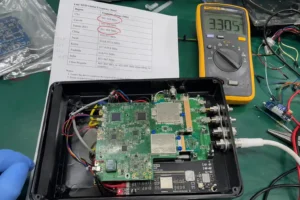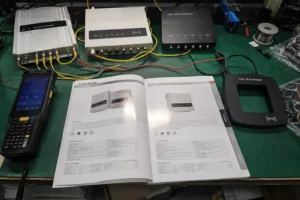
When an RFID printing station stops working, the cable is often the first thing people replace.
But a reader, printer, and host system can all appear to be online while the real fault sits somewhere else: the system architecture, communication settings, printer language, RFID encoding configuration, or the sequence in which a print-and-encode job is executed.
The fastest way to troubleshoot an RFID reader and label-printer workflow is to separate the problem into layers: first identify how the system is actually connected, then verify the communication path, test ordinary printing, test one known RFID encode job, and only after that return to the full production workflow.
This article focuses on the communication and RFID encoding path. Print-head defects, optical sensors, ribbon problems, and ordinary media-feed faults should be diagnosed separately.
First, Identify How the RFID Reader and Printer Actually Work Together
Before checking baud rates, ports, or commands, confirm the architecture.
Not every RFID installation has an external RFID reader directly connected to a label printer.
There are several common arrangements.
1. RFID Print-and-Encode Printer
Many industrial RFID label printers contain their own RFID encoding module.
In this arrangement, the host system sends a print-and-encode job to the printer. The printer handles printing, RFID writing, and verification internally.
The external RFID reader, if one exists elsewhere in the workflow, may not communicate with the printer at all.
2. External RFID Reader and Separate Label Printer
Some workflows use a normal label printer together with a separate RFID reader or writer.
In that case, a PC, PLC, middleware application, or WMS usually coordinates the two devices.
The host might:
- generate an EPC or asset ID
- send label content to the printer
- send RFID data to the reader
- verify the written tag
- record the result in the business system
The reader and printer do not necessarily talk directly to each other.
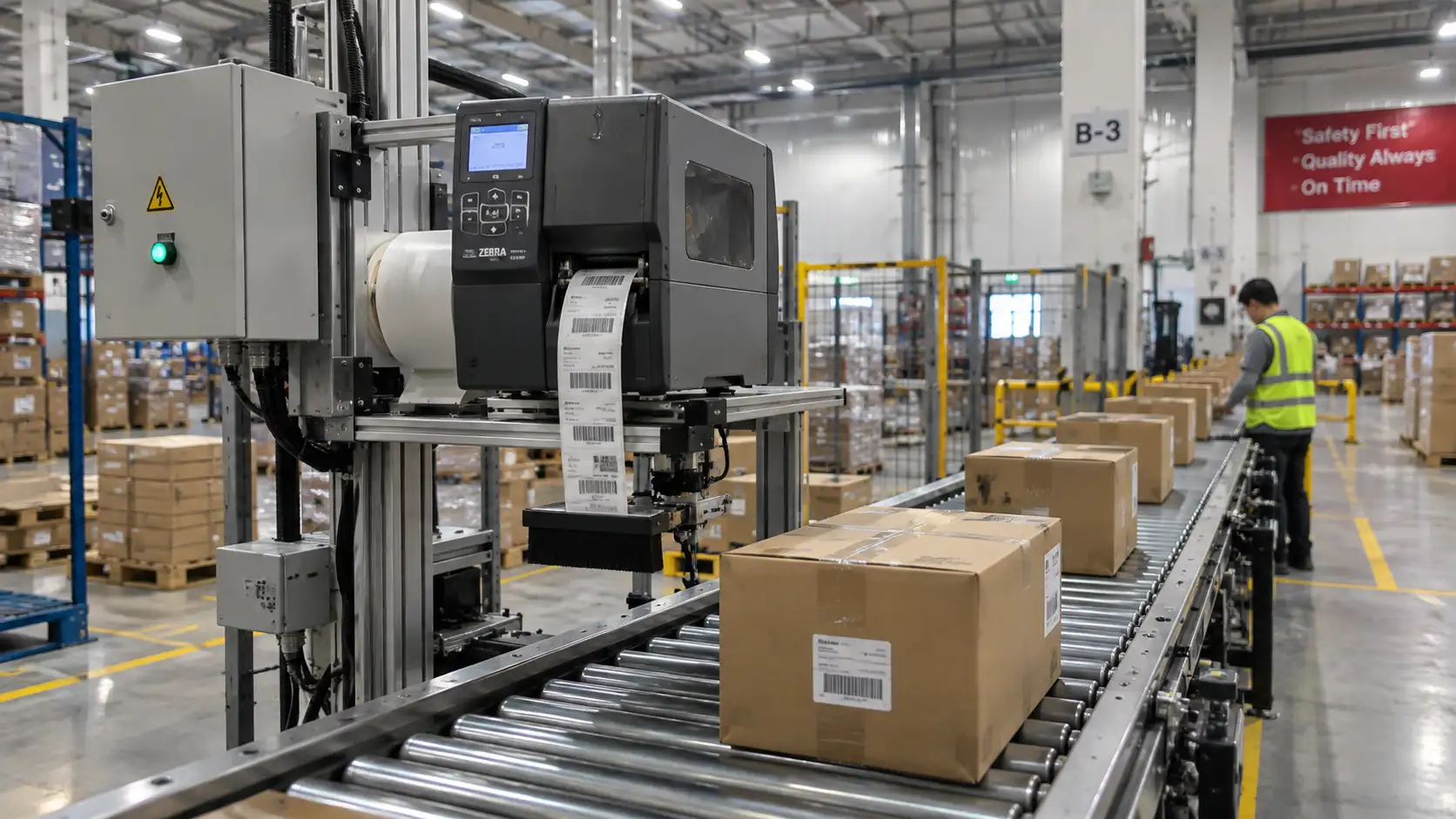
3. Automated Print-and-Apply or Production Line
A larger automated system may include the printer, RFID encoder, external reader, applicator, sensors, PLC, and middleware.
Here, troubleshooting has to follow the complete control path rather than assuming one cable links everything together.
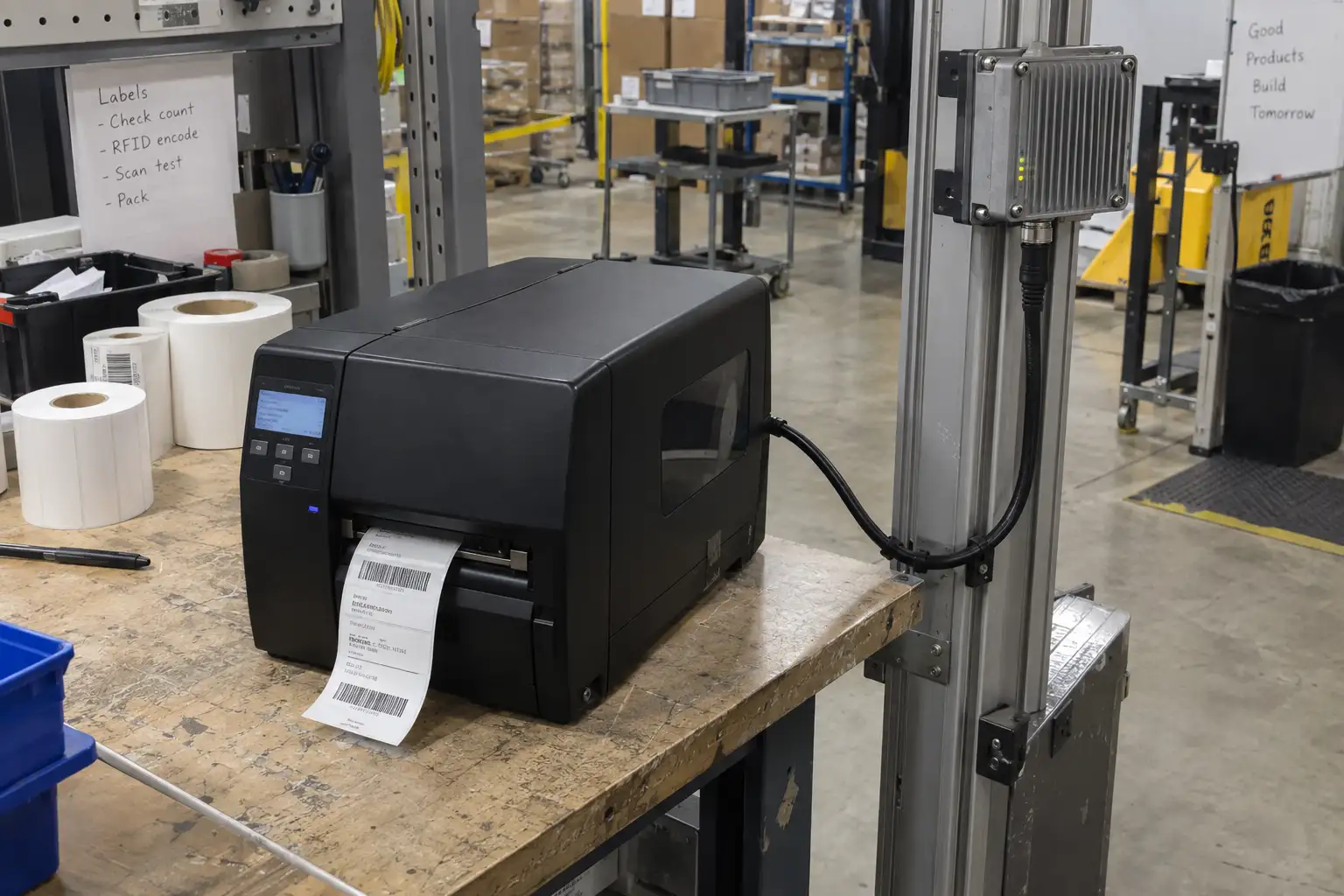
This distinction matters because the troubleshooting path changes depending on which architecture you actually have.
If the printer already contains the RFID encoder, replacing or reconfiguring an external reader may have no effect on an encode failure.
How Is the Printer Connected to the Host System?
Once the architecture is clear, check the communication interface.
Industrial label printers may use Ethernet, serial communication, USB, Wi-Fi, or another interface depending on the model and installation.
There is no single interface that is correct for every RFID printing station.
Ethernet / TCP/IP
Ethernet is common on fixed industrial printers because it allows the printer to sit anywhere on the plant or warehouse network.
Many printers accept raw print jobs over TCP/IP, and port 9100 is commonly used by printers that support raw socket printing.
However, the actual port, printer language, and connection method should always be confirmed against the printer configuration rather than assumed.
RS-232 Serial
Serial communication remains common in legacy machines, production equipment, PLC-connected systems, and some industrial printers.
Both sides must agree on settings such as:
- baud rate
- data bits
- parity
- stop bits
- flow control
A cable can be electrically correct while the devices still fail to communicate because the serial settings do not match.
Cable wiring matters as well. Depending on the equipment, the connection may require a specific pinout or straight-through / null-modem arrangement.
Do not assume that changing to another serial standard will solve a distance problem unless both devices actually support that interface.
USB
USB is useful when the printer is connected directly to one workstation.
Depending on the device and driver, the printer may appear as a standard USB printer, virtual serial device, or another device class.
That means troubleshooting USB should begin with the operating system and driver rather than with serial-port settings copied from another installation.
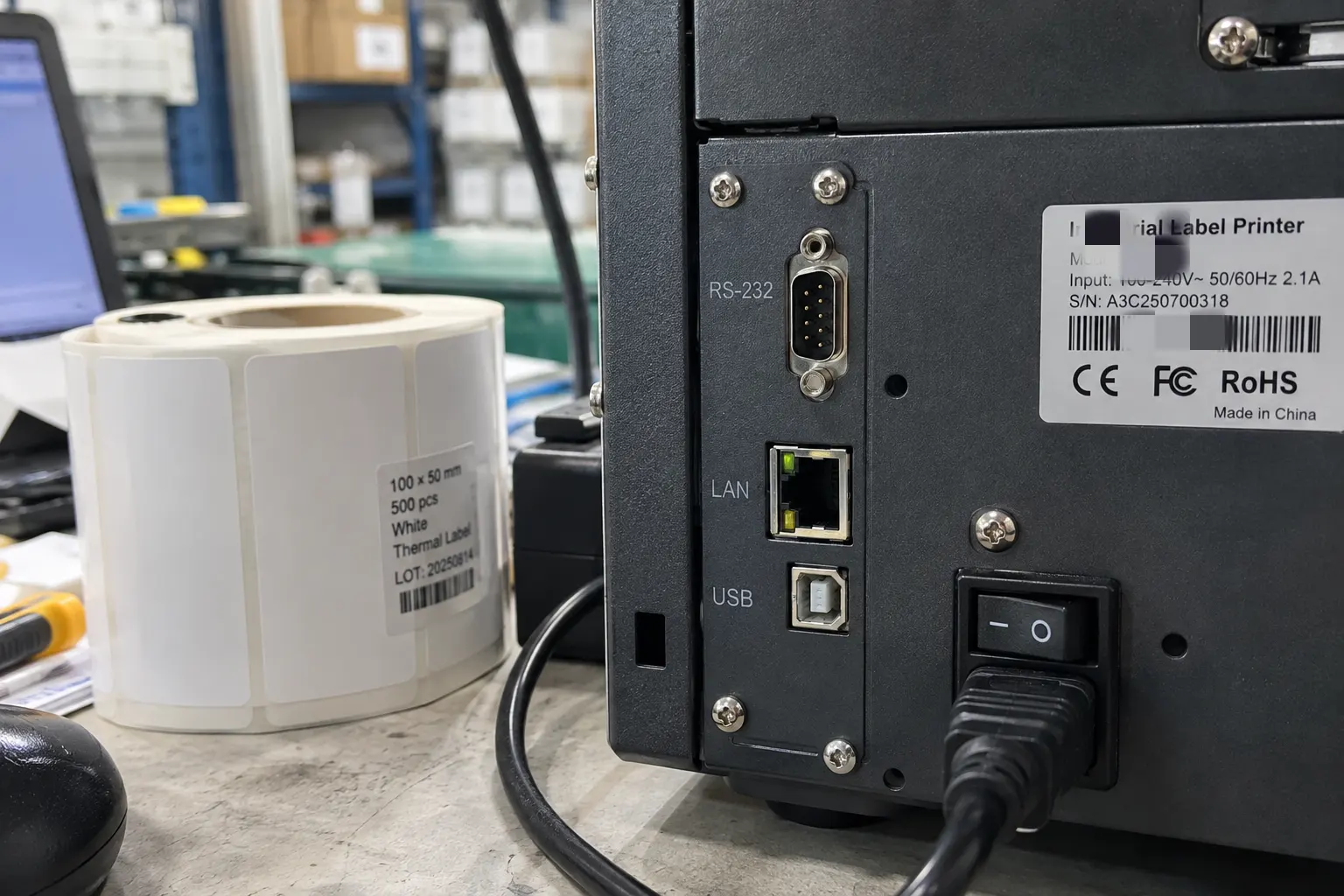
If you are still selecting the reader and communication interfaces for a new system, the RFID reader buying guide covers the interface choices that should be considered before installation.
Why Can the Printer Be Online but Still Fail to Encode RFID Tags?
A working network connection only proves that the host can reach the printer.
It does not prove that the RFID portion of the job is correct.
This is an important distinction.
A printer can successfully receive a job and print visible text or a barcode while the RFID inlay remains blank, contains the wrong data, or fails verification.
When that happens, the communication layer may already be working.
The problem has moved to the RFID encoding layer.
What Happens Inside an RFID Print-and-Encode Job?
In a typical RFID print-and-encode printer, several operations happen within a very small physical area.
The exact sequence varies by printer design, but conceptually the system must:
- position the RFID inlay correctly
- communicate with the RFID chip
- write the required data
- confirm that the write succeeded
- print the visible label content
- advance or dispense the label
Some printers may perform parts of this sequence in a different order or combine several stages internally.
The important point is that RFID encoding depends on both electronic configuration and physical media position.
If the inlay is not in the expected position relative to the printer's RFID antenna, an otherwise valid job can fail.
Likewise, a printer calibrated for one RFID label construction may behave differently when the inlay position changes.
Media Calibration Matters
RFID labels are not all built the same way.
The antenna and chip may sit at different positions inside the label depending on the inlay design.
An RFID printer therefore needs to know where the transponder is located relative to the print and feed mechanism.
If the media changes, calibration or RFID positioning may need to be checked again.
This is especially important when changing:
- label size
- inlay model
- chip type
- liner construction
- gap position
- RFID transponder position
A communication error and a media-position error can produce a similar symptom: the label prints, but the RFID portion fails.
That is why the two should be tested separately.
How Does RFID Verification Fit Into the Workflow?
Writing data to the chip is not enough.
A reliable print-and-encode system should confirm that the information can be read back correctly before the label is accepted as good.
The printer's RFID module may perform this verification internally.
If the write fails, the printer may retry the operation, mark the label as void, stop the batch, or report an RFID error depending on the model and configuration.
This means a "printer stopped" symptom may actually be the printer doing exactly what it was configured to do: rejecting labels that failed RFID verification.
When troubleshooting, check whether the printer is reporting:
- RFID calibration failure
- tag not detected
- write failure
- verification failure
- memory-bank error
- unsupported tag
- repeated voided labels
Those messages are much more useful than treating every stopped job as a network problem.
Why Do Printer Commands and Job Formatting Cause RFID Failures?
The communication link can be healthy while the print job itself is wrong.
Industrial printers use printer languages such as ZPL, EPL, TSPL, CPCL, or vendor-specific command sets.
RFID-capable printers add commands or parameters for operations such as:
- selecting the RFID memory bank
- defining the data to write
- controlling RFID power or positioning
- locking or protecting memory
- verifying the written data
- handling failed tags
The exact commands depend on the printer manufacturer, model, firmware, and printer language.
That is why copying an RFID command string from another printer can create problems even when both devices appear similar.
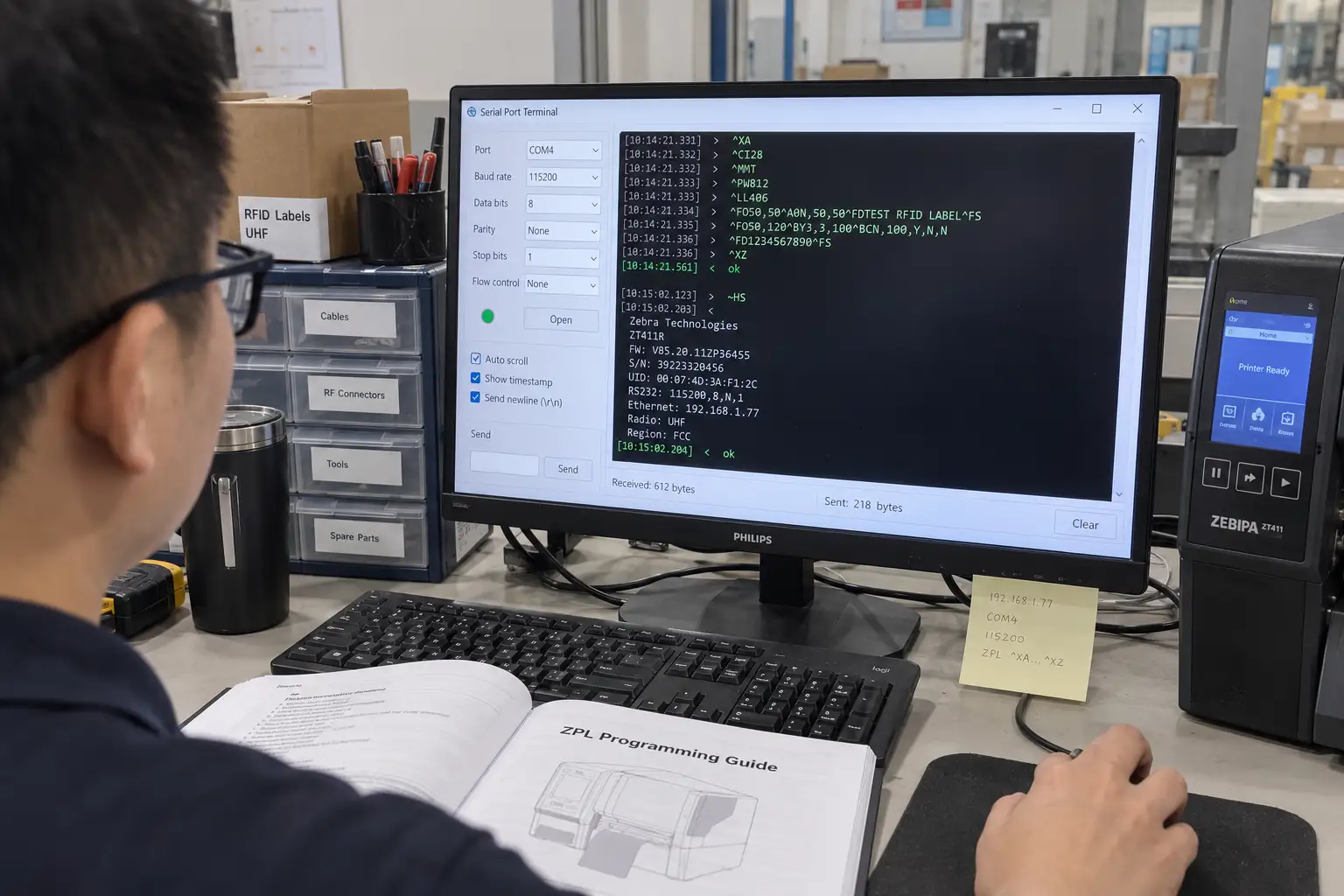
For example, a host system may correctly send the visible label text but format the EPC data incorrectly.
The result can be:
- a printed label with a blank RFID chip
- truncated RFID data
- the wrong memory bank being written
- ASCII characters written where binary or hexadecimal data was expected
- a printer-side RFID error
- a label being repeatedly voided
Be Careful With EPC Data Representation
A 96-bit EPC contains 12 bytes of binary data.
When that value is represented as hexadecimal text in a host application, it is commonly displayed as 24 hexadecimal characters.
Those are two representations of the same underlying value, not two different EPC sizes.
Problems appear when one part of the system expects raw bytes while another expects hexadecimal text or another encoded representation.
The correct format therefore needs to be defined at every handoff:
WMS / database → middleware → printer job → RFID memory bank
Do not assume that because the value "looks right" on the screen, the printer is receiving it in the expected representation.
What Causes a Reader or Printer Data Stream to Freeze?
When a serial or network job starts normally and then stops after several records, the problem is often different from a complete connection failure.
On serial links, check flow-control settings.
Both sides need to agree on whether the connection uses:
- no flow control
- hardware flow control such as RTS / CTS
- software flow control such as XON / XOFF
A mismatch can allow the first part of the job through and then cause the stream to stall.
On TCP/IP connections, examine the complete job framing.
The printer must receive whatever start, end, delimiter, or job-termination structure its printer language expects.
A socket that remains connected does not automatically mean the printer has received a complete job.
This is why a network status showing "connected" is only one troubleshooting clue.
How Do You Isolate an RFID Printer Communication Fault?
Do not begin by changing several settings at once.
Use a layered test so every result tells you which part of the system is working.
Step 1: Confirm the Architecture
Determine whether the RFID encoder is:
- built into the printer
- an external desktop reader/writer
- a separate reader controlled by middleware
- part of a PLC or automated print-and-apply system
Do this before testing cables or commands.
Step 2: Confirm the Communication Interface
Verify the actual connection being used.
For Ethernet:
- confirm the printer IP address
- confirm network reachability
- confirm the required TCP port or print service
- confirm that another host is not sending conflicting jobs
For serial:
- confirm baud rate
- data bits
- parity
- stop bits
- flow control
- cable pinout
For USB:
- confirm the device is detected
- confirm the correct printer or device driver
- confirm which logical printer or port the application is using
Step 3: Send a Simple Non-RFID Print Job
Remove RFID encoding from the test.
Send one simple static label containing only visible text.
If the printer cannot produce that label, continue troubleshooting the communication, driver, printer-language, or ordinary printer layer.
There is no reason to debug RFID commands yet.
Step 4: Add One Known RFID Value
Once ordinary printing works, test one known RFID tag and one fixed value.
Do not immediately return to a database-driven batch.
Use a known EPC or test value that can be read back independently.
If the visible label prints but the RFID operation fails, the fault has now been narrowed to the RFID configuration, media positioning, command format, tag, or verification step.
Step 5: Read the Tag Back
Verify the result with another trusted RFID reader when practical.
Confirm:
- whether the tag was actually written
- which memory bank was written
- whether the full value is present
- whether the expected value matches the business-system value
This separates a printer display or software-message problem from an actual RFID memory problem.
Step 6: Return to the Full Production Job
Only after one static RFID job works should you restore:
- variable EPC data
- WMS or ERP integration
- batch printing
- applicator logic
- PLC triggers
- automatic verification rules
That keeps the troubleshooting sequence controlled.
Quick RFID Printer Troubleshooting Table
| Symptom | Likely area to investigate first | First practical check |
|---|---|---|
| Printer cannot be reached | Network, USB, serial, driver, cable | Confirm the interface and basic printer communication |
| Printer is online but nothing prints | Printer language, port, job formatting | Send one simple static non-RFID label |
| Visible label prints but RFID tag stays blank | RFID command, media calibration, tag detection | Encode one known RFID value on one known-good label |
| RFID data is present but incorrect | Data representation, memory bank, field mapping | Read the tag back and compare the actual bytes/value |
| Job starts and then freezes | Flow control, buffer handling, incomplete job framing | Check serial flow control or network job termination |
| Multiple labels are voided | RFID write or verification failure | Check printer RFID status, calibration, and label/inlay type |
| One label type works and another fails | Inlay position, chip compatibility, RFID calibration | Recalibrate using the actual RFID media |
If the symptom appears to come from the print head, media sensor, liner, or optical side rather than the RFID communication path, see the guide on optical RFID encoding errors.
For desktop tag preparation before labels enter an automated line, see RFID data initialization with a desktop reader.
FAQ
Does an RFID Reader Normally Connect Directly to a Label Printer?
Not always.
An RFID print-and-encode printer usually contains its own RFID encoder and receives the print-and-encode job from a PC, middleware application, WMS, ERP, or another host system.
In other workflows, an external RFID reader and a separate printer are coordinated by middleware or a PLC.
Always identify the actual architecture before troubleshooting the connection.
What Is the Best Connection for an Industrial RFID Printer?
There is no single best interface for every installation.
Ethernet is common for fixed networked stations, serial interfaces remain useful in industrial and legacy equipment, and USB is convenient for a printer connected directly to one workstation.
The correct choice depends on the existing controls, network architecture, distance, printer model, and software integration.
Why Does My Printer Print the Label but Leave the RFID Chip Blank?
If visible printing works, basic communication with the printer may already be functioning.
Check the RFID layer next:
- RFID media calibration
- tag or inlay compatibility
- EPC or memory-bank selection
- RFID job commands
- data representation
- RFID write and verification status
Testing one known tag with one fixed value is usually more useful than repeatedly sending the full production batch.
Why Does an RFID Printer Keep Voiding Labels?
Repeated void labels often indicate that the printer attempted to write or verify the RFID tag and did not get the expected result.
Possible causes include media calibration, RFID transponder position, incompatible media, damaged inlays, incorrect RFID settings, or data/command problems.
Check the printer's RFID status or error log before treating the problem as a communication failure.
Is a 96-Bit EPC the Same as 24 Hexadecimal Characters?
A 96-bit value contains 12 bytes.
When those 12 bytes are displayed as hexadecimal text, they are represented by 24 hexadecimal characters.
The important part is making sure the host software and printer agree on whether a field contains raw bytes, hexadecimal text, ASCII text, or another representation.
How Can I Tell Whether the Problem Is the Cable or the RFID Encoding?
Remove RFID encoding from the test.
If the printer can produce a simple static label reliably, the basic communication path is probably working.
Then add one known RFID encode job.
If ordinary printing works but the RFID operation fails, move the investigation to the RFID configuration, commands, media, or verification stage instead of continuing to replace cables.
Conclusion
RFID printer problems become much easier to diagnose once the workflow is separated into layers.
First identify whether the printer contains the RFID encoder or relies on an external reader. Then confirm the communication interface. Prove that an ordinary label can print. Add one known RFID value, verify it independently, and only then restore the complete production workflow.
That sequence separates network and cable problems from printer-language, RFID calibration, encoding, and verification problems without changing several variables at once.
If you are designing a new reader-and-printer workflow, the RFID reader buying guide can help clarify the interface requirements before installation.
If you need help matching the reader, RFID printer, tag media, communication interface, or encoding workflow to a specific application, contact Fongwah.