
Struggling with your RFID setup? Wasted time and project delays are frustrating. The key is to understand your reader, which makes the whole process simple and effective.
To use an RFID reader1 effectively, you must first select the correct reader for your environment. Then, you connect the hardware, install the necessary software and drivers, and configure the settings to successfully read and write data to RFID tags within your specific application.

Getting an RFID system to work perfectly is a journey. It starts long before you scan your first tag. As someone who has seen countless projects succeed and fail over 20 years, I can tell you that success is built on a solid foundation. It's about making smart choices from the very beginning. From a buyer's perspective, this means asking the right questions before you commit. This approach saves you time, money, and a lot of headaches down the road. Let's break down the essential steps to master your RFID reader1, starting with the most critical decision you'll make.
What Should You Consider Before Choosing an RFID Reader?
Buying the wrong reader is a costly mistake. Your project can stall for weeks, and budgets can be wasted. You must ask the right technical questions first.
When choosing a reader, you must analyze three core factors. Consider the required frequency (LF, HF, UHF) for your read range2. Evaluate the connectivity options3 (USB, Ethernet, Wi-Fi). Finally, assess the physical environment where the reader will operate, such as indoors or outdoors.

In my experience, the biggest initial error I see clients make is choosing a reader based on price alone, not on application requirements. I remember a logistics client4 who bought a batch of inexpensive HF readers for their warehouse. They didn't realize their pallets needed to be scanned from several meters away. HF readers have a very short range, so the system was useless. They had to scrap everything and start over with UHF readers5, losing valuable time and money. This is why a buyer must be well-informed. Understanding the technical specifications is not just for engineers; it's for anyone making a purchasing decision. Here is what to focus on.
Frequency Determines Range and Use Case
The operating frequency is the most important specification. It dictates how far and how fast you can read tags. Low Frequency (LF) is great for short-range, secure applications like access control. High Frequency (HF) is common for item-level tracking over a few centimeters. Ultra-High Frequency (UHF) is built for long-range scanning, like in a warehouse.
Connectivity and Integration
How will the reader talk to your system? A simple USB reader is great for a single workstation. An Ethernet (PoE) reader is better for fixed installations across a large area. Wireless options like Wi-Fi or Bluetooth offer flexibility for mobile applications. You must match the reader's output to your existing software and network infrastructure.
Environmental Durability
A reader in a clean office has different needs than one in a dusty factory or a wet outdoor environment. Look for the IP (Ingress Protection) rating. An IP67-rated reader6 is dust-tight and can handle being submerged in water, which is ideal for harsh conditions.
| Feature | Low Frequency (LF) | High Frequency (HF/NFC) | Ultra-High Frequency (UHF) |
|---|---|---|---|
| Frequency | 125-134 kHz | 13.56 MHz | 860-960 MHz |
| Read Range | Up to 10 cm | Up to 30 cm | Up to 15 m+ |
| Best For | Access Control, Animal ID | Payments, Library Books | Logistics, Inventory |
| Interference | Less sensitive | Moderately sensitive | Sensitive to metal/liquid |
What Are the Key Steps to Set Up Your RFID Reader?
Your new reader has arrived, but it's just a box. Without a proper setup, it's a useless piece of hardware. Follow these simple steps to bring it to life.
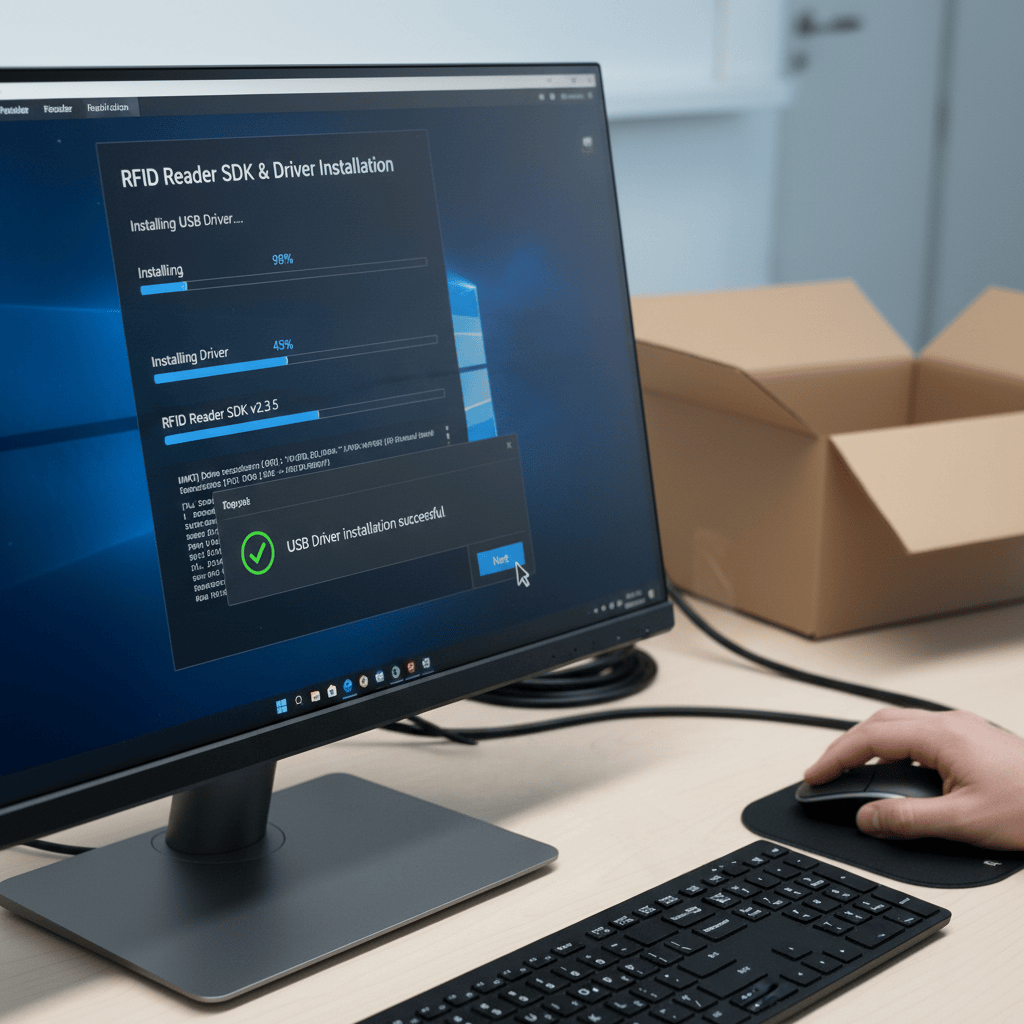
The setup process involves three main stages. First, physically connect the hardware7, including the power supply, antenna, and data cable8. Second, install the necessary drivers and the Software Development Kit (SDK)9 on your computer. Finally, run a test scan to confirm it's working.
When I started on the production line at Fongwah, my first job was assembling and testing readers. I learned very quickly that a loose connection can cause huge problems. A data cable8 that wasn't fully plugged in could make a perfectly good reader seem broken. This taught me to be methodical. The setup process is not something to rush. Each step builds on the last. A solid physical connection ensures the software has a stable device to communicate with. As a buyer who now needs to deploy these systems, taking a few extra minutes to double-check every connection and setting can save you hours of troubleshooting later.
Step 1: Hardware Connection
This is the physical foundation of your setup. First, connect the antenna to the reader's antenna port. Ensure the connector is tight. A loose antenna is a common reason for poor performance. Next, connect the power supply. Some readers use a separate power adapter, while others get power over Ethernet (PoE) or USB. Finally, connect the data cable8 (USB, Ethernet, etc.) from the reader to your computer or network.
Step 2: Software Installation
Your reader needs software to function. Most manufacturers, including us at Fongwah, provide a Software Development Kit (SDK)9 and demo software10. Start by installing any necessary drivers for your operating system. Then, install the SDK. The SDK contains the libraries and tools your developers will need to integrate the reader into your own applications. Use the provided demo software10 for initial testing11.
Step 3: Initial Testing
The final step is to make sure everything works. Open the demo software10. The software should automatically detect the connected reader. If not, you may need to manually select the correct COM port or enter the reader's IP address. Once connected, take a compatible RFID tag and place it near the antenna. The software should display the tag's unique ID number.
| Step | Action | Key Consideration |
|---|---|---|
| 1. Connect Hardware | Plug in the antenna, power, and data cable8s. | Ensure all connectors are firmly seated. |
| 2. Install Software | Install drivers, SDK, and demo application. | Run as administrator if you encounter permission issues. |
| 3. Run Test Scan | Open demo software10 and read a test tag. | Confirm the tag ID appears on the screen. |
How Can You Troubleshoot Common RFID Reader Issues?
Your tags are not reading. It is extremely frustrating. Your entire project is now on hold because of this problem. Let's check the most common culprits to get you back on track.
To troubleshoot a non-responsive reader, start with the basics. First, verify all physical connections and power sources. Next, check for environmental interference12 from metal or liquids. Finally, review your software settings to ensure they match the reader's configuration and tag type.

I once spent a full day with a client trying to figure out why their new UHF gate reader wasn't working. The software was configured, the reader had power, but it wouldn't read tags more than a foot away. We were about to send the unit back. Then, I noticed the reader was mounted directly onto a large metal support beam. Metal detunes UHF antennas and blocks the radio waves. We moved the reader just six inches away from the beam using a plastic spacer, and it immediately started reading tags from 10 meters away. From a buyer's perspective, this story is a reminder that the environment is just as important as the hardware itself.
Physical Layer Issues
This is the first place to look. Is the reader powered on? Check the indicator lights. Is the antenna cable securely fastened to the correct port? Is the data cable8 fully plugged in at both ends? Sometimes, simply rebooting the reader and the host computer can resolve temporary communication glitches.
Environmental Interference
Radio waves can be blocked or reflected by materials in the environment. Metal is the biggest problem for UHF RFID. Large metal objects like shelving, machinery, or filing cabinets near the reader or tags can severely impact performance. Liquids can also absorb radio waves. Try to keep a clear line of sight between the reader's antenna and the tags.
Software Configuration
The software settings must be correct. Is the software connected to the right reader (e.g., correct COM port or IP address)? Is the reader's power output13 set appropriately? A setting that is too low will reduce read range2. Is the reader configured to look for the right type of tag protocol14 (e.g., EPC Gen2 for UHF)? Double-checking these small details in the software often solves the problem.
| Problem | Possible Cause | Recommended Solution |
|---|---|---|
| No Power | Loose power cable or faulty power supply. | Check cable connections; test with another power supply. |
| Poor Read Range | Antenna interference, low power setting. | Move reader away from metal; increase power in software. |
| No Tag Data | Wrong software port, incorrect tag protocol14. | Verify COM/IP settings; ensure tag type matches reader settings. |
Conclusion
Choosing the right reader, setting it up correctly, and knowing how to troubleshoot are the keys. This practical knowledge is what ensures your RFID project will be a success.
---Explore this link to find comprehensive reviews and comparisons of RFID readers tailored to various use cases. ↩
Explore the various factors that influence RFID read range to optimize your setup. ↩
Explore various connectivity options to find the best fit for your RFID system. ↩
Explore tailored RFID solutions that enhance efficiency in logistics and supply chain management. ↩
Discover the benefits of using UHF RFID readers for long-range scanning applications. ↩
Discover the significance of IP ratings and how they affect RFID reader performance in different environments. ↩
Learn the best practices for connecting RFID hardware to ensure optimal performance and reliability. ↩
Find out about the different data cable options for connecting RFID readers to systems. ↩
Explore the role of SDKs in RFID integration and how they can simplify your development process. ↩
Learn how demo software can help you test and evaluate your RFID reader's capabilities. ↩
Get step-by-step instructions for testing your RFID reader to ensure it functions correctly. ↩
Learn about the factors that can interfere with RFID signals and how to mitigate them. ↩
Discover how to configure power output settings for improved RFID performance. ↩
Learn how the right tag protocol can enhance the efficiency of your RFID system. ↩